Control Desk
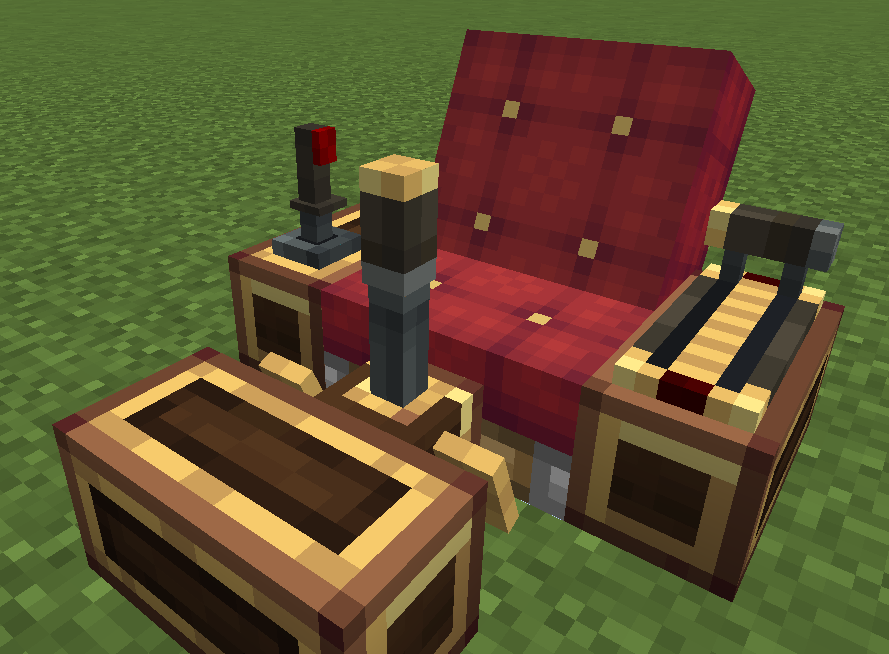
Designed to optimize space usage and maintain a clear field of view.
Channel
Version 1.1.1 changed the global channel to a physical-body-scoped channel, reusing the Short-Range Signal Linker's channel space, where channel numbers are only addressable within the physics body that the desk is part of.
The purpose is to prevent interference between different physics bodies when deploying blueprints or mass-producing them.
Two different physics bodies can use channel 1 simultaneously without interfering with each other.
The Control Desk is a seat-driven control console. By default it has no controls installed — you install Foot Pedals, a Joystick and/or a Throttle onto it yourself. Sit on a Create seat next to the desk and you automatically enter operation mode: your keyboard drives the installed controls of every linked desk, and the control states are exposed to CC:T via a Lua API.
Installing / Removing Controls
- Install: hold a control item (Foot Pedal / Joystick / Throttle) and right-click the desk. The control mounts at a fixed position on the desk's front edge. While aiming at a desk with a control item in hand, a preview box shows the mount position — green = can install, red = already installed. Installing consumes one item (not in Creative).
- Remove: hold a Create wrench and sneak + right-click the mounted control — only the control you clicked is removed and dropped as an item.
- Form conversions: the desk can be reshaped into a full-width slab (Dock) or a 3/4 stair with a front wall (Baffle) — both mutually exclusive with the front-mounted controls.
- Breaking the desk drops any installed controls together with the desk.
- A desk with no controls installed can be removed normally with a wrench (sneak + right-click).
Seat Operation Mode
Sitting is all you need — no manual interaction:
- Sit on any Create seat that has at least one Control Desk within 1 block directly to its north / east / south / west.
- All such desks around the seat (up to 4) become linked and respond to your keys simultaneously (broadcast). A linked desk without the corresponding control installed simply ignores the input.
- Press sneak to dismount (vanilla Create behavior is preserved).
Linking is based on the seat's four neighbors, not on the desk's facing. While you are in operation mode, keys bound to the desk's controls are drained from the vanilla key handling before the game processes them — so e.g. pressing E drives the pedal instead of opening the inventory. Held-state behavior that is not click-driven (movement, sneak-to-dismount) is untouched.
Seat detection
The seat is detected by the ridden entity, not the block: operation mode triggers whenever your vehicle is Create's SeatEntity (or a subclass of it). Seats from other mods that ride Create's seat entity — such as Create: Interiors chairs — work out of the box.
Configuration Menu
Open the desk's configuration menu with:
- Wrench + right-click the desk, or
- Empty hand + sneak + right-click the desk
The menu contains:
- Channel scroll bar — the desk's physical-body-scoped channel number, sharing the Short-Range Signal Linker's per-body channel space: the channel is only addressable within the physics body (constraint chain) the desk sits on, so two different aircraft can both use channel
1without interfering. A desk not placed on any physics body cannot register a channel — the menu shows a "only usable on a physics body" hint instead of the channel bar (occupied channels within the body are skipped). - Installed controls list — click a row to open that control's module settings menu (key bindings, return time, gear mode, etc.).
All settings are stored in the block's NBT and survive Create schematics / contraption pick-up, so you can mass-produce configured desks.
CC:T Peripheral
The desk's peripheral type is "ccpe:control_desk".
Getting the Peripheral
-- Method A: via a channel (works at any distance, but only within the same physics body)
local ss = require("ccpe.sensor_system")
local desk = ss.getPeripheral(4)   -- 4 = the desk's channel number (scoped to the computer's physics body)

-- Method B: direct CC:T peripheral (computer placed adjacent)
local desk = peripheral.wrap("right")
-- or
local desk = peripheral.find("ccpe:control_desk")
Getting Control Handles
local pedal = desk.getModule("pedal")     -- nil if no pedal installed
local joy   = desk.getModule("joystick")  -- nil if no joystick installed
local th    = desk.getModule("throttle")  -- nil if no throttle installed
desk.getModule(name) accepts "pedal" / "joystick" / "joystick_2" / "throttle" / "throttle_2" (case-insensitive) and returns nil when the control is not installed. The returned handles read the server-authoritative control state directly:
| Handle | Methods |
|---|---|
pedal |
getLeftPedal(), getRightPedal(), getPedalDifference(), isLeftPedalDown(), isRightPedalDown(), isLeftPedalUp(), isRightPedalUp() |
joystick |
isAxisXActive(), isAxisYActive(), getAxisX(), getAxisY(), getAxisXSigned(), getAxisYSigned() |
joystick_2 |
isAxisXActive(), isAxisYActive(), getAxisX(), getAxisY(), getAxisXSigned(), getAxisYSigned() |
throttle |
isForwardActive(), isBackActive(), isActive(), getThrottleGear(), getAxis(), isFreeMode(), setFreeMode(enabled), setAxis(axis) |
throttle_2 |
getAxis(), getCenterAxis(), setAngle(degrees) |
monitor_2 |
via getModule("monitor") — same methods as the Monitor |
See Foot Pedal, Joystick, Joystick 2, Throttle, Throttle 2 and Monitor 2 for the full API of each handle. All state-reading methods run on the CC worker thread (mainThread = false) and are safe to poll at high frequency.
Virtual Joystick HUD (optional)
A debug/test HUD overlay showing a virtual joystick in the corner of the screen can be enabled via the client config joystickOverlayEnabled (default off).