Monitor Slab
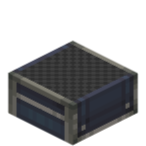
The Monitor Slab is a step-shaped monitor block: its surface is a 14×14 board grid where you can install button, switch, knob and screen modules and control them with Lua from a CC:T computer.
Compared to the Monitor, it has a flat (half-slab) shape, making it suitable as an information panel on the floor, on a wall, or on a ceiling. It reuses the Monitor's channel and peripheral system, but its config is simpler (channel only).
Attachment Forms and Orientation
The Monitor Slab can attach to three kinds of faces:
| Form | Attaches to | Panel faces |
|---|---|---|
| Floor | Top of a block | Panel faces up |
| Wall | Side of a block | Panel faces outward |
| Ceiling | Bottom of a block | Panel faces down |
Watch the orientation when placing (floor and ceiling each have 4 orientations)
Both the floor and ceiling variants have 4 orientations (FACING), following the player's horizontal facing when placing: floor = opposite of the player's facing, ceiling = the player's facing; wall = the clicked face. The display direction of the surface modules / screen content changes with this orientation — pay attention when placing so the content faces the direction you want.
Getting the Monitor Slab Peripheral
The CC:T peripheral type is "ccpe:monitor_slab"; obtain it the same way as the Monitor (sharing the same global channel system):
-- Method A: by channel (recommended, works at any distance)
local pe = require("ccpe.pe")
local slab = pe.getPeripheral(3)   -- 3 is the Monitor Slab's global channel number

-- Method B: wrap when a computer is placed directly against it
local slab = peripheral.wrap("right")
-- or
local slab = peripheral.find("ccpe:monitor_slab")
Operation
- Place modules: hold a module item (button / switch / knob / screen) and right-click the panel to place it; screens are placed by clicking two empty cells to form a rectangular region.
- Configure channel: hold a wrench and right-click (or sneak + right-click empty-handed) to open the config interface and set the global channel number (shared channel system with the Monitor / Peripheral Extender).
- Configure modules: wrench right-click a module / screen → opens the module config interface.
- Remove modules: wrench sneak + right-click a module / screen → removes it.
- Remove the whole block: wrench sneak + right-click an empty spot on the panel → removes the block, returning a plain Monitor Slab item (no data kept); this is blocked if the surface has content (it prompts you to remove the modules first).
- Break directly: drops a plain Monitor Slab plus the surface module / screen items (modules separate from the block).
Lua API
It shares the same interface as the Monitor (MonitorGridHost): getCellModule(x, y) / getModule(id) to query module and screen instances, and playNiceSound() / playSound(name) to play sounds.
See Monitor Overview ("Common module methods") and Button Module / Switch Module / Knob Module / Screen Module for the generic module methods and per-module APIs.
The screen's text / graphics API is identical to the regular Monitor's screen module (see Screen Module); content direction follows the placement orientation and is readable from the front of the panel.