Button Module
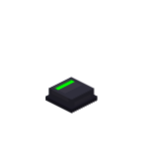
The button itself is momentary: pressing and releasing are separate, and isPressed reads the current pressed state.
It also offers four sets of capabilities — "player click detection", "player interaction lock", "light strip control" and "surface label" — which can be combined into custom behaviors such as a latching button.
press() / release() play the corresponding button sound — the sound is triggered by the button's actual action (movement), not by the player's raw mouse input.
Operation
- Configure module: hold a wrench and right-click the module, or sneak + right-click, to open the module config interface and configure properties such as module ID and tooltip
- Remove module: hold a wrench and sneak + right-click to remove the module
Basics: Press / Release / State
btn.press()
Presses the button and plays the press sound (the light strip lights up with the press in "auto mode").
btn.release()
Releases the button and plays the release sound (the light strip turns off with the release in "auto mode").
btn.isPressed()
Returns whether the button is currently pressed (boolean).
Player Click Detection
Note
Used to distinguish between "player clicks" and "Lua-call press/release". Only actual player clicks (client → server interaction packets) update the states below; btn.press() is not counted.
btn.wasClicked()
Returns whether the button has been pressed by a player since the last read (only triggers on the press edge 0→1; releasing the mouse does not trigger; the flag is automatically cleared after reading, suitable for edge detection).
btn.getClickCount()
Returns the cumulative number of player clicks (each player press +1; Lua's press() is not counted).
local last = btn.getClickCount()
while true do
    local now = btn.getClickCount()
    if now ~= last then
        print("New clicks", now - last)
        last = now
    end
    os.sleep(0.05)
end
btn.clearClicked()
Clears the "unread click" flag (without reading it).
Surface Label
The button surface can display a text label (rendered in the same style as the knob's angle text: centered, white, same font size by default). Passing an empty string "" clears the display but keeps the previously set position / scale / colour, so the next write reuses them.
btn.setLabel(text)
Writes text onto the button surface. Pass an empty string "" to clear the display (the previously set position / scale / colour are kept).
btn.getLabel()
Returns the button surface text (empty string if not set).
btn.setLabelPosition(x, y)
Sets the label position offset relative to the label origin. Units are MC pixels (1px = 1/16 block); x is positive to the right, y is positive upward. (0, 0) is the label origin — the visual center of the button surface (default).
btn.getLabelPosition()
Returns the label position offset as x, y (MC pixels).
btn.setLabelScale(scale)
Sets the label font size (block / font pixel). Default 1/512 (identical to the knob's angle text); larger values mean bigger text, e.g. 1/256 is twice as large.
btn.getLabelScale()
Returns the label font size (default 1/512).
btn.setLabelColour(colour)
Sets the label colour as 0xRRGGBB (default white 0xFFFFFF).
btn.getLabelColour()
Returns the label colour (0xRRGGBB, default 0xFFFFFF).
btn.setDropShadow(dropShadow)
Sets whether the label draws a drop shadow (default true, same as the knob's angle text). Set false to remove the shadow below the text.
btn.getDropShadow()
Returns whether the label currently draws a drop shadow (default true).
All together:
btn.setLabel("START")
btn.setLabelPosition(0.2, 0.1)  -- 0.2px right, 0.1px up from the origin
btn.setLabelScale(1 / 256)      -- twice the knob angle font size
btn.setLabelColour(0xFF0000)    -- red
btn.setDropShadow(false)
Player Interaction Lock (Lua fully controls the button)
btn.setPlayerControl(enabled)
Sets the player interaction toggle.
true(default): players can press/release the button as usualfalse: the button is fully controlled by Lua — player clicks do not change the pressed state and do not directly play sounds, but they still updatewasClicked()/getClickCount()(sounds are triggered bypress()/release(), following the button's actual action)
btn.getPlayerControl()
Returns whether player interaction is currently allowed (boolean, default true).
Light Strip Control
btn.setLight(level)
Sets the light strip brightness (0..1) and automatically switches to "code-controlled" mode (after this, player interaction no longer changes the light strip).
0= off,1= brightest
btn.getLight()
Returns the light strip brightness set by Lua (0..1, default 0).
btn.setLightControl(codeControlled)
Sets whether the light strip is code-controlled.
true: light strip brightness only changes withsetLight(player interaction does not affect it)false(default): auto mode, the light strip lights up/down with the pressed state
btn.isLightControlled()
Returns whether the light strip is currently code-controlled (boolean).
Examples
Example 1: Lua-controlled latching button (light strip follows automatically)
Do not control the light strip (keep the default "auto mode"); only use the player interaction lock to take over the button behavior, turning the momentary button into a "click to toggle" latching button: the light strip automatically lights up with the pressed state.
local pe = require("ccpe.pe")
local monitor = pe.getPeripheral(3)
local btn = monitor.getModule(0)

-- Lock player interaction: player clicks no longer directly change the button state,
-- the script fully decides press/release
btn.setPlayerControl(false)

local latched = false

while true do
    if btn.wasClicked() then
        latched = not latched
        if latched then
            btn.press()    -- press: plays press sound, light strip turns on automatically
        else
            btn.release()  -- release: plays release sound, light strip turns off automatically
        end
    end
    sleep(0.05)
end
Example 2: Latching button where the light strip shows state (button stays momentary)
Do not control the press/release behavior (keep the momentary button player-interactable); only use the light strip to show the latched state: each click toggles the light strip, which no longer follows the momentary press.
local pe = require("ccpe.pe")
local monitor = pe.getPeripheral(3)
local btn = monitor.getModule(0)

-- Hand the light strip to Lua (setLight automatically switches to code-controlled mode, no longer follows presses)
btn.setLight(0)

local latched = false

while true do
    if btn.wasClicked() then
        latched = not latched
        if latched then
            btn.setLight(1)   -- light strip on = on
        else
            btn.setLight(0)   -- light strip off = off
        end
    end
    sleep(0.05)
end